JBCL Contacs Inquiry Help
Topics are:
Overview
JBCL Windows Contacs Inquiry
This is an easy to use Windows Inquiry program with all the features of the
old Inquiry program, the Chronological Inquiry, and many newer features as well.
This program is fast and efficient and will run on any version of Windows from Windows 95 or 98
through to Windows XP and later, also Windows Terminal Services and Remote Desktop.
It is designed to run efficiently over a slow network or VPN.
To Index
Altering Setups
How to Change Company or Ledger Setups
Click the button "Setup" to set
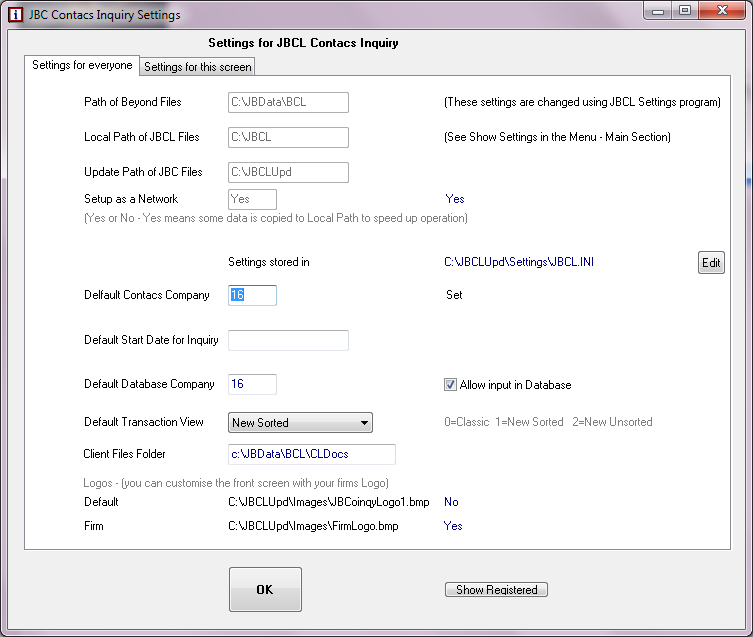
How to change JBCL Contacs Inquiry setup
The defaults shown are designed to fit the great majority of sites.
If you are on a Network then the drive letter of the Beyond Folder will usually be different, eg F:\SB or M:\BEYOND.
The drive letter can be found by looking at the properties of the
shortcut used to start Beyond, or in the Beyond Administration menu
look at the top right of the screen.
Above are settings for all screens (everyone).
There is also a section of settings for this screen only.

For Screen Sizes - I suggest these choices:
First choice - for a start Click the "Auto Resize with small bold
transactions" Option. This is the default and gives the best
result for a wide range of screens.
Second choice - If your screen has high resolution (1024x768 or better)
with a good monitor then try the "Auto Resize with small bold
transactions" option. This can give a wonderfully readable screen.
If this does not look good, then take the "Do not resize" option.
Advanced - if you have a screen of 1024x768 or better and wish to fine
tune the appearance,
try the "Manually Set Window Size". Leave the Zoom, the Font Size and
Row Height unchanged and tick the "Bold Transactions". This gives a
very easy to read display with lots of transactions on the screen,
more than are shown with the Auto Resize option. Note the Transaction
Row Height setting should be
around twice the font size setting.
Click OK when finished and say Yes to save if you wish to save changes.
Note you have to restart the program for screen size changes to take effect.
(There is a separate help section with more details on Screen Setups)
To Index
How to Use
Using the program is very similar to the old Classic Inquiry, even if
it looks quite different. You can enter a Name or Code, and a list will
appear below of the matching names if there are more than one. Click on
the match you want, or arrow down and press Enter.
If you know the Code you can also enter it directly.
-a Client code will take you to the Client Details screen
-a Matter code will take you to the Matter Details screen
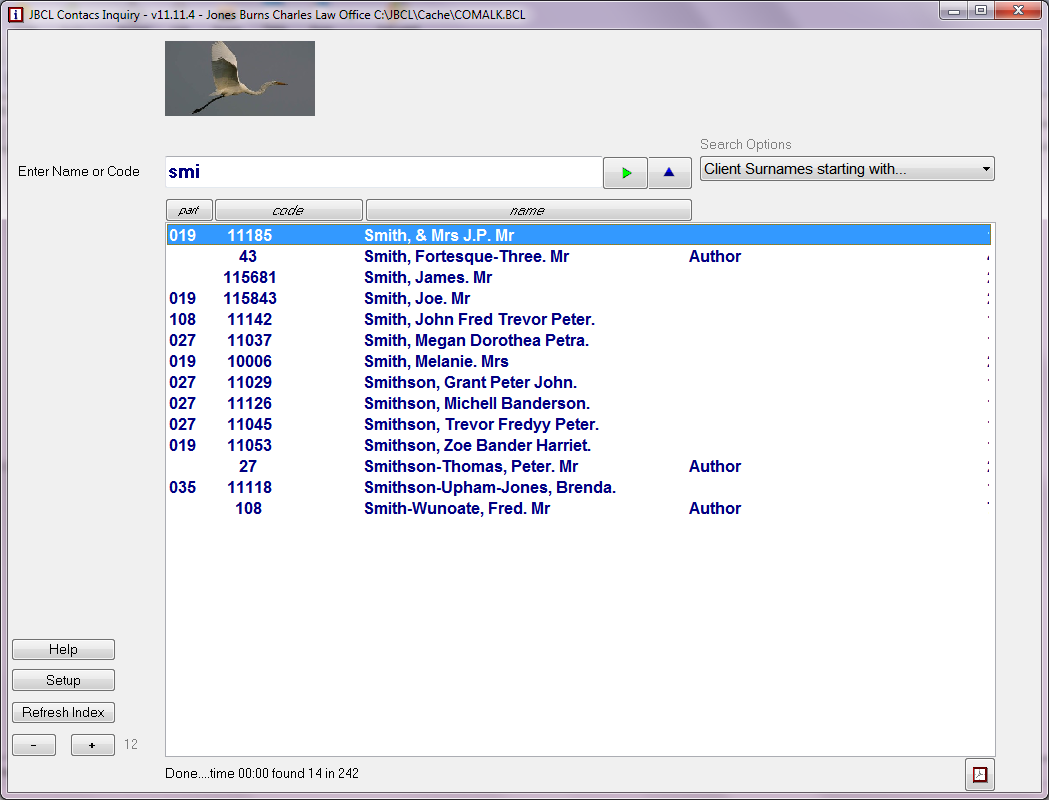
For example,
Search Options:
Search Client Surnames: If you type SMITH all SMITH's and SMITHSONS and any surname beginning
with SMITH will be shown.
Search All Client Name: SMITH anywhere in the name will be shown, eg JONES AND SMITH PLUMBERS
Search Client/Matter Name: Surname SMITH will also match PURCHASE OF SMITH STREET if that is in the Matter description.
Order of names
You can change the order of names by clicking on the title bar of the
top of the list. By default the order is by name, you can also sort by
Code or Partner Code (and name).
Search History
The Inquiry program keeps a list of inquiries done for today. You
can search this list by clicking the history button (The upwards
pointing triangle at the end of the "Enter Name or Code" prompt).

Once you have the client or Matter you wish, highlight and press enter, or double click on it.
How to Inquiry in more detail:
Client display

Main features of the Client Inquiry screen
* You can see the individual Trust/Mortgage/Account Rendered/Time & Cost/Notes information by clicking on the tab for each.
* You can send an email address by clicking the email button (if an email address is stored)
* You can start Online Time recording by clicking the Clock button in the bottom right hand corner
* You can start the JBCL Database for Wills and Deeds by clicking the Owl button in the bottom right hand corner.
* You can select the type of inquiry (1 matter, all matters, or Chronological) by clicking the "All Matters" button.
To Index
Matter display
The Matter display shows all the information for Trust, Investment, Account Rendered, Time, Mortgage and Notes
in separate Tabs. Click on each to see the details.

To Index
Multiple Matters
You can show all or many matters for a Client at once.
*Click on the "All Matters button" or the "Options/Selections" button
then select the "Standard Inquiry on many Matters" option

To Index
Chronological Display
You can show transactions from all or many matters for a Client at once.
*Click on the "All Matters button" or the "Options/Selections" button
then select the "Chronological Inquiry" option.
This shows the transactions for all matters sorted in Date order.

To Index
Selections and Options
You can select what is shown in the Inquiry.
The most common use is to set the Start and Finish Dates for transactions.
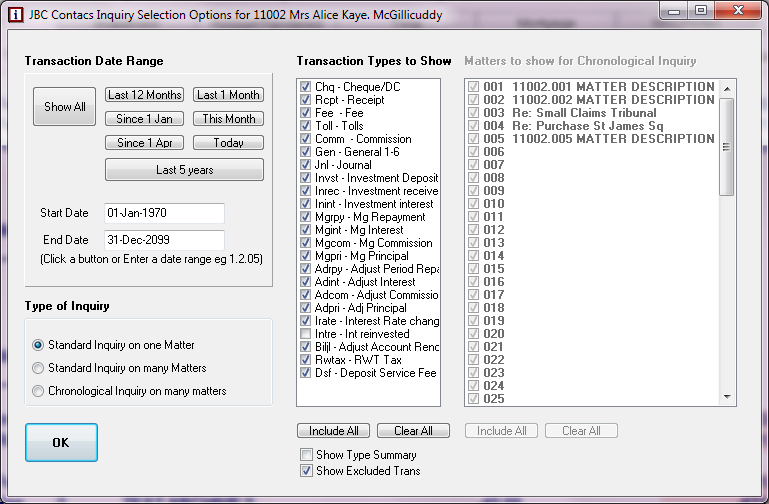
You can select many things here:
*Dates to show transactions. You can pick a standard range or choose your own
*Click "Show All" to set the dates back to showing all dates
*Show one matter or many matters, or sort into date (Chronological) order
*Which matters to show
*Which transaction types to show
*Click OK to close this screen (or press Tab or Enter to get to the OK Button and press Enter).
To Index
Printing
Where there is a "Print" Button, if you click it you will get the options to
Print everything shown on the screen.

Note:
*If you have a Demo version of the program wait for the Demo notice to disappear!
(if you do not sometimes the Print options will pop up behind other windows)

*Select Print to send the printout to the default printer
*Select Preview to see the printout on the screen. You can zoom, and select which
pages to print
*Select Setup to see the list of Printers and change other printer options.
To Index
Advanced Options
Features you will not have seen in Inquiry before are:
*Ability to Search by any part of client name or Matter Description
*Ability to sort matching names in Name, or Code, or Partner order
*Transaction Running Balances shown on screen, with debit balances highlighted in red
*Easily compose an email to a client who has an email address
*Ability to see transactions for all matters without having to look at each one separately
*Ability to see all transactions for a client in Date order
*Convenient Date Selections - eg this year, this financial year, This Month etc
*Ability to show only some transaction types
*Time and Cost shows Fee History
*Print Preview and ability to print only some pages.
*Ability to view, edit and save text notes for Clients and Matters.
*Inbuilt timers show pop-up info on time spent on current client and matter
*Integration with Wills and Deeds Database (Windows version)
*Integration with Online Time Recording (Windows version)
*Ability to easily view and edit Client Notes.
To Index
How-To and Common Questions
How do I find a client I don't the know the code for?
Type in the surname, or check the Matter Description search option
and search by the Matter description.
Do I have to update a client Index like the Acclipse Office for Lawyers?
No - the program does this automatically, and it is so fast you don't normally notice.
On the Search screen there is a button "Refresh Index" to make it do this now if a new client
or matter has just been added and you don't see it yet.
How do I Print?
Where you see a "Print" button this will print all the information on the screen.
How do I Print just Trust or Time information for a matter?
Go into Print Preview, and select only the page ranges that has the information you want.
How do I select a date range?
Click on "Date Options". There are a number of quick date selection buttons, or you can
type in a date, eg you can enter 1.1.00 or 1-Jan-2000 or 01/01/2000 for 1 January 2000
How do I show many matters?
Click on "Date Options" or the "All Matters" button and select the option
"Standard inquiry on many matters" This will show the matters one after another.
You can also select which matters are included (by default all are shown).
What is Chronological Inquiry?
All transactions for a client for all matters are sorted together in date order.
You can choose which matters are included or excluded.
Click the "All Matters" button and then "Inquire" or select "Chronological Inquiry"
on the Date Options screen.
How do I show some transaction types?
Click on "Date Options" . Also on this screen are which transaction types to show.
by default all are shown, but you can clear all and show just Cheques for instance.
Note - this selection is set back to all types for each new inquiry.
(Except for type 20 - INTRE which are normally shown separately).
How do I Navigate around the transactions?
Use the scroll bars, or Page Up and Page Down. To reduce the number of transactions shown,
Click on "Date Options" . Also on this screen are which transaction types to show.
How do I Find the Time and Cost Sections?
All the Time and Cost Sections are shown on the one long grid display.
Yo can scroll through it to see the details, or
Click the buttons at the top of the Time and Cost Tab to quickly jump the the
Sections eg "Time" "Employee Summary" or "Fees"
How do I list Partners or Authors?
Same as the old Inquiry - at the Enter Name or Code enter *A or *P to list authors or partners.
Note if you enter *PA you will see both together.
How do I list Investment Companies?
Same as the old Inquiry - at the Enter Name or Code enter *I to list Investment companies.
Then you can pick the one you want.
In the individual Investment Company you see the list of matters with investments.
You can select the individual matter by double clicking on it or highlighting and pressing enter.
How do I edit Client Notes?
This can be done directly in the Inquiry program - a small version
of the notes are shown to the right of the client summary, to see
a larger version and to edit the notes click on the "View/Edit
Notes" tab.
Edit the text of the notes, and then click "Save".
To Index
Screen Setup Options
Here is an example of two screens set at Auto Resize

Bold Transactions - Here is the same screen with default Manual sets and "Bold Transactions" selected.

Here is the Matter Details with "Auto Resize" selected and "Bold Transactions" not selected.

Bold Transactions - Here is the Matter Details with default Manual sets and "Bold Transactions" selected.

For Screen Sizes - I suggest these choices:
First choice - for a start Click the "Auto Resize" Option.
Second choice - If your screen has high resolution (1024x768 or better)
with a good monitor then try the "Auto Resize with small bold
transactions" option. This can give a wonderfully readable screen.
If this does not look good, then take the "Do not resize" option.
Advanced - if you have a screen of 1024x768 or better and wish to fine
tune the appearance,
try the "Manually Set Window Size". Leave the Zoom, the Font Size and
Row Height unchanged and tick the "Bold Transactions". This gives a
very easy to read display with lots of transactions on the screen,
more than are shown with the Auto Resize option. Note the Transaction
Row Height setting should be
around twice the font size setting.
To Index
Future Ideas
Let JBCL know of which of these ideas you like, and any others that you have!
Company Logo
Your firms logo shown on the front search screen
Different resolution screens
If you have a high resolution screen such as 1000x800 or 1200x100 then at
present the Inquiry Window is just part of the screen. Future versions should
have the window expand to the size of your screen.
Note as of 2007 the default settings make a very good job for most screens.
Copy and Paste inquiry information
If you wish to copy and paste information into another document, this
at present is not simple. It should be easy to highlight any
information and copy it.
To Index